Requirements
Phase 1
- Find an interesting short gesture for a quality video.
- Draw frame by frame the sequence of the gesture.
- Create a copy of each image in the sequence using Photoshop drawing tools.
- Use a resolution of 1080x1920 pixels for portrait format (social media) or 1080x1920 pixels for YouTube.
Phase 2
- Continue progressing on your animation or start a new one.
- If you are working on the same sequence, it's time to add inking lines and some painting effects.
- Paint a copy of the image using Photoshop drawing tools.
- Use a resolution of 1089x1920 pixels, either in landscape or portrait orientation.
Applications
Photoshop
Description
Part 1
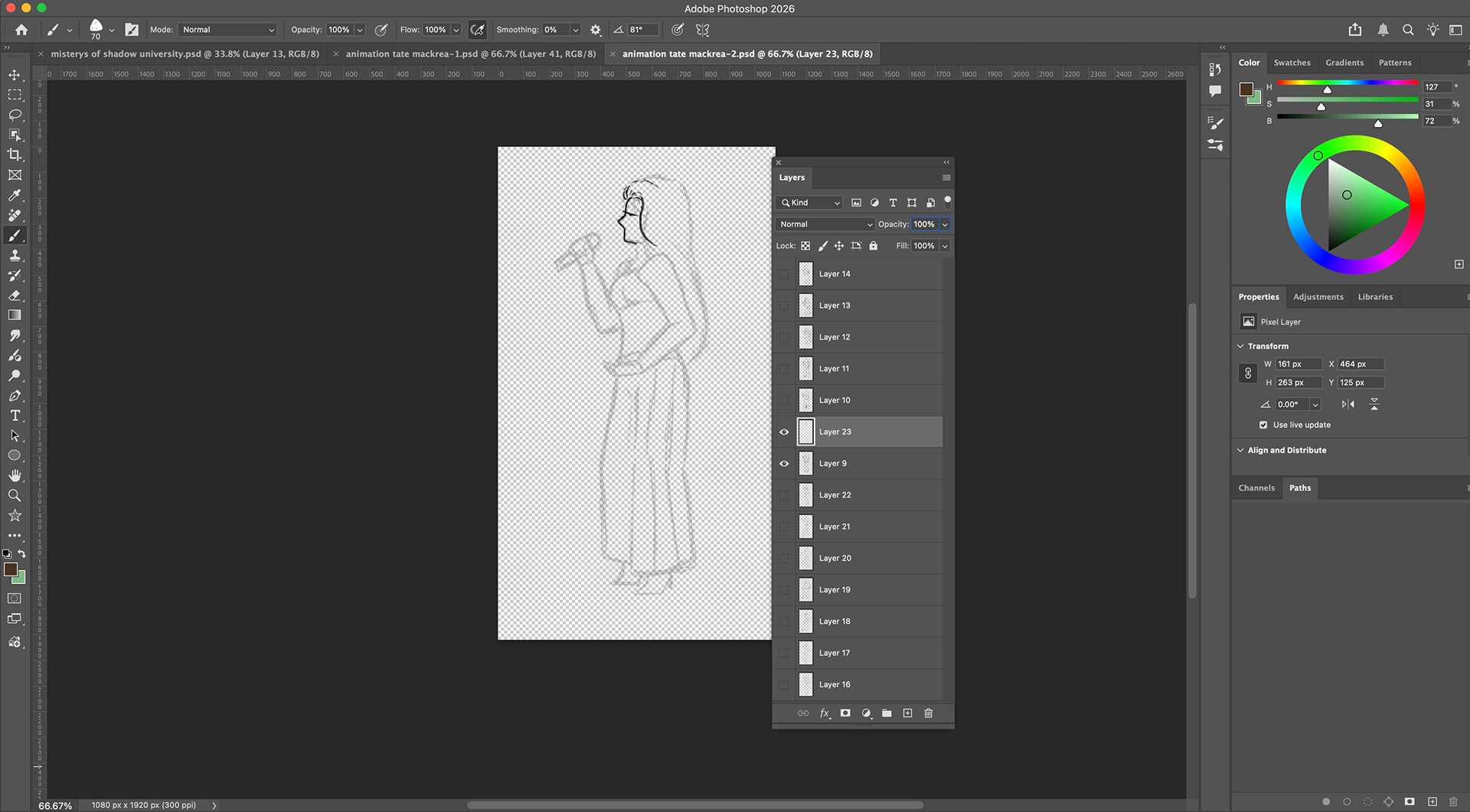
For part one of the animation project, I first looked for a short but detailed video of one of my favorite singers, Tate McRae, singing and moving on stage. Then, I slowed down the video to see every movement that I would include in the gesture. In Photoshop, I opened the Windows tab and selected the Timing option to access the animation layers. The gestures I drew had to be on an animation layer that corresponded to the drawing layer. Once the gestures were complete and matched each movement, I made sure every layer was corresponding correctly, then pressed play to watch my drawing come to life.
Part 2
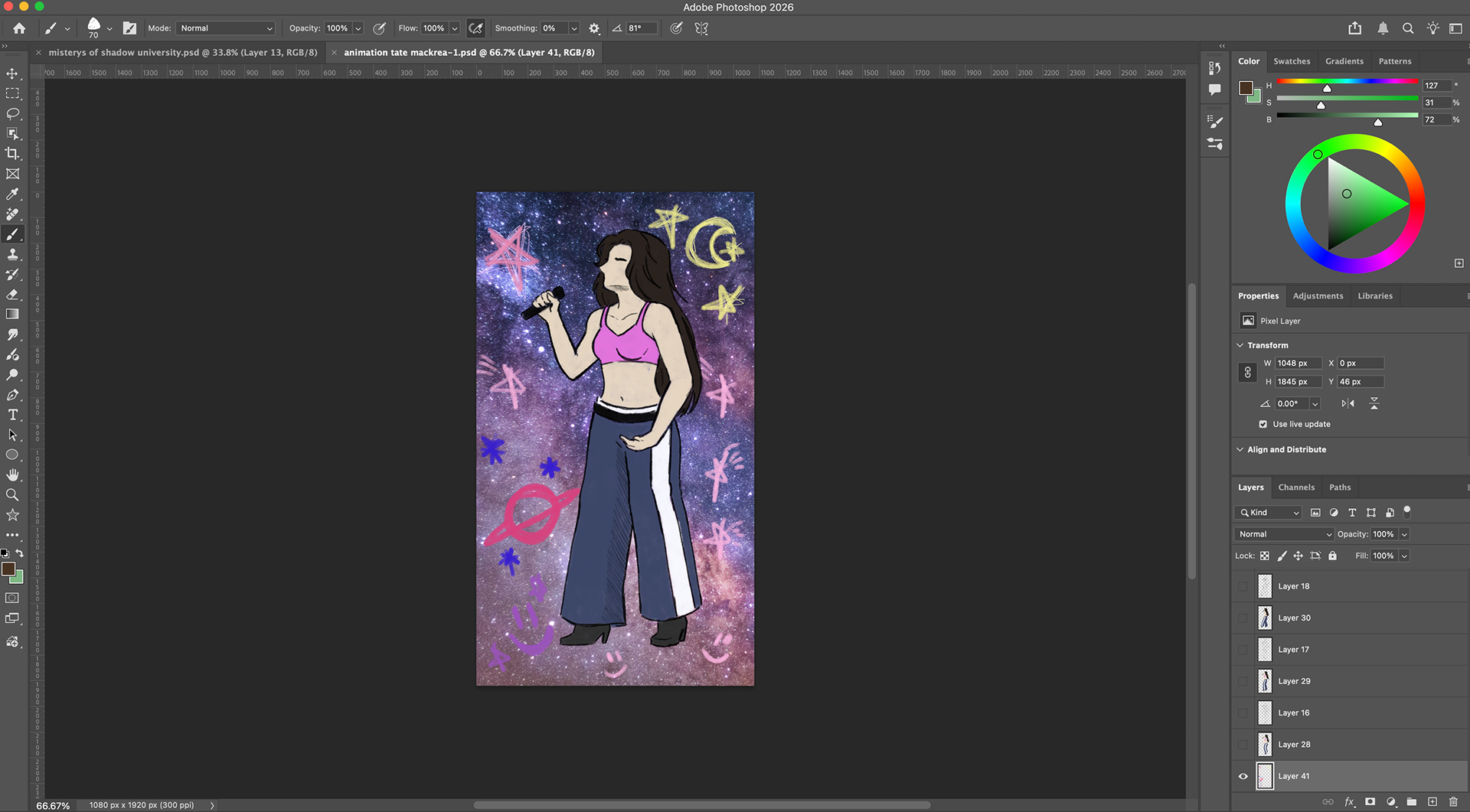
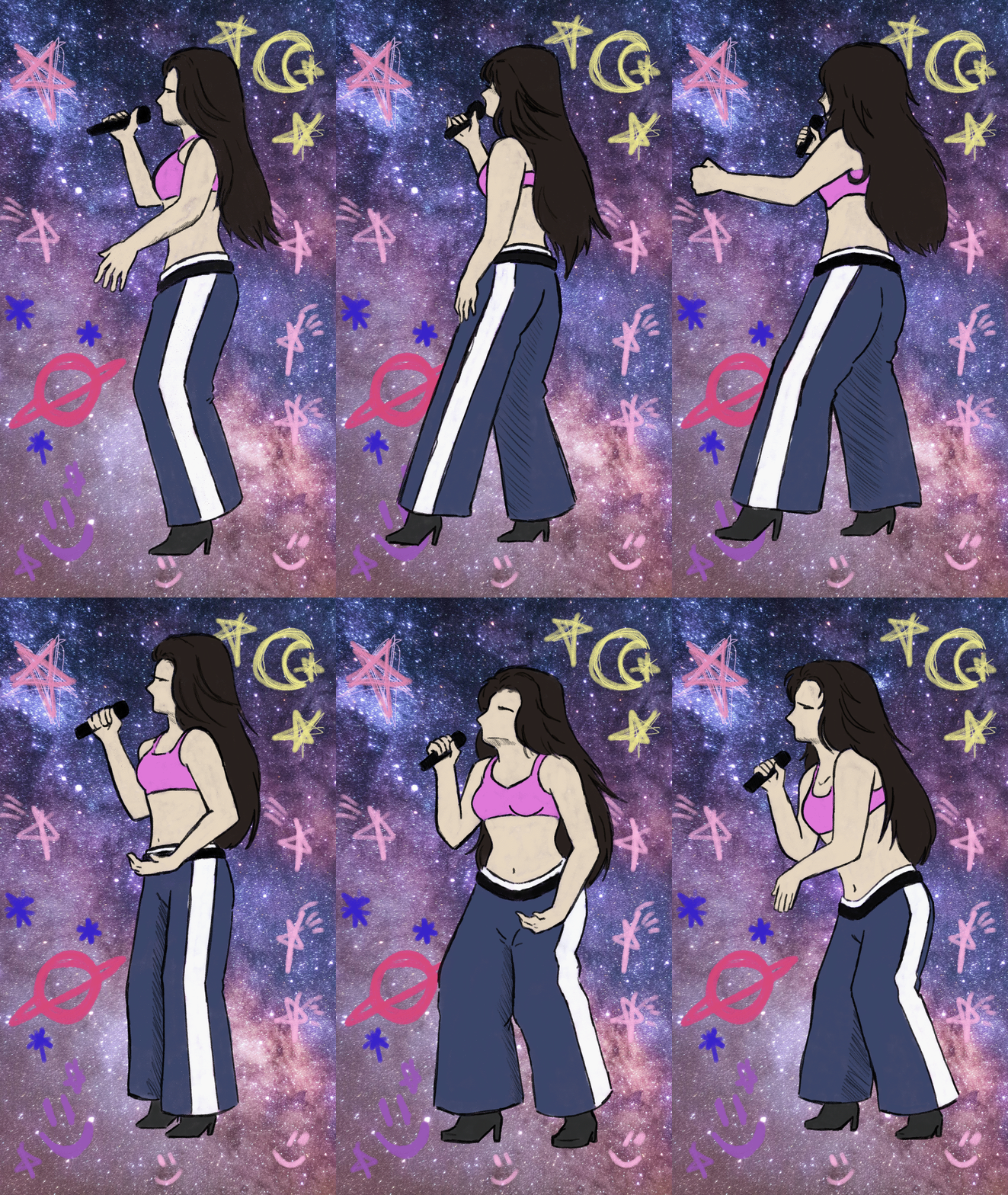
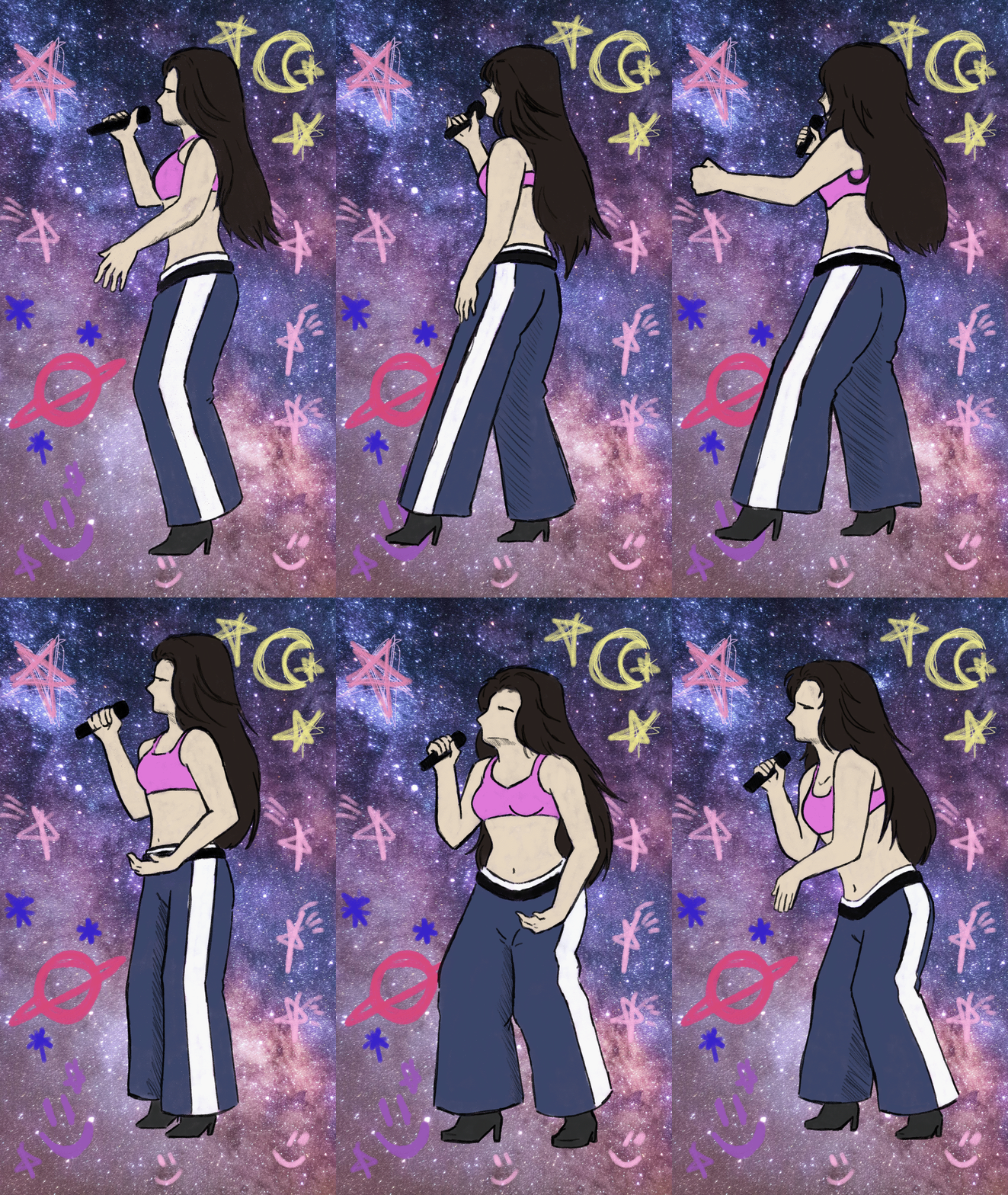
For part 2 of the animation project, I began adding color to the moving figure. I applied the colors layer by layer, making sure they corresponded to the motion of the line art. Once everything was connected and moved smoothly, I added a galaxy background that linked all layers and frames together. Additionally, I included small sketches of stars and planets around the singer to give it a cute look.
GIFT Slowe
GIFT Faster
Progress